User Manuals Mobiliis Company Admin Guide
11. District managers
A district manager looks after the supervisors, clients and guards in one district. A district can have more than one district manager. They sign in to the admin website with their own email and password and see only their own district. They cannot open Districts, District managers, the Account page or billing.
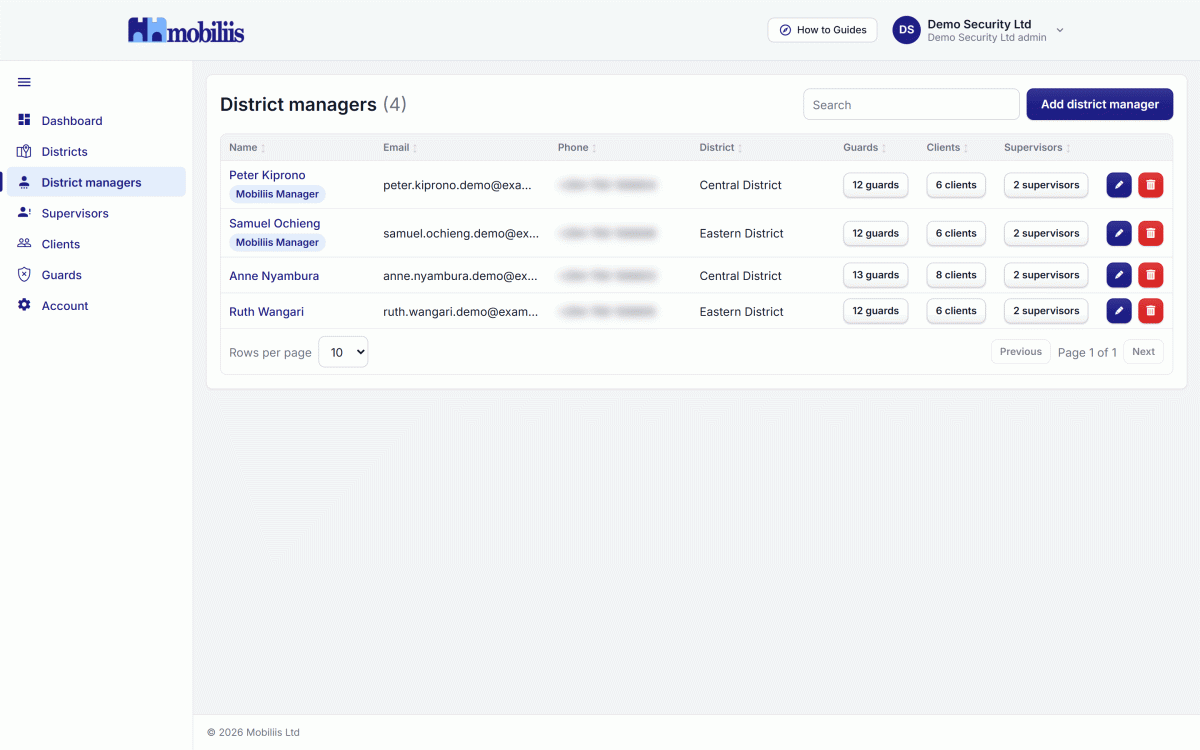
You can make a district manager a Mobiliis Manager: they then work across your Mobiliis account as you do, except billing, admin logins and changing the company information. On the District managers list, Mobiliis Managers are always at the top, with a small blue Mobiliis Manager label under their name; their page shows "Role: Mobiliis Manager". See section 25.
Adding a district manager
- In the side menu, click District managers, then Add district manager.
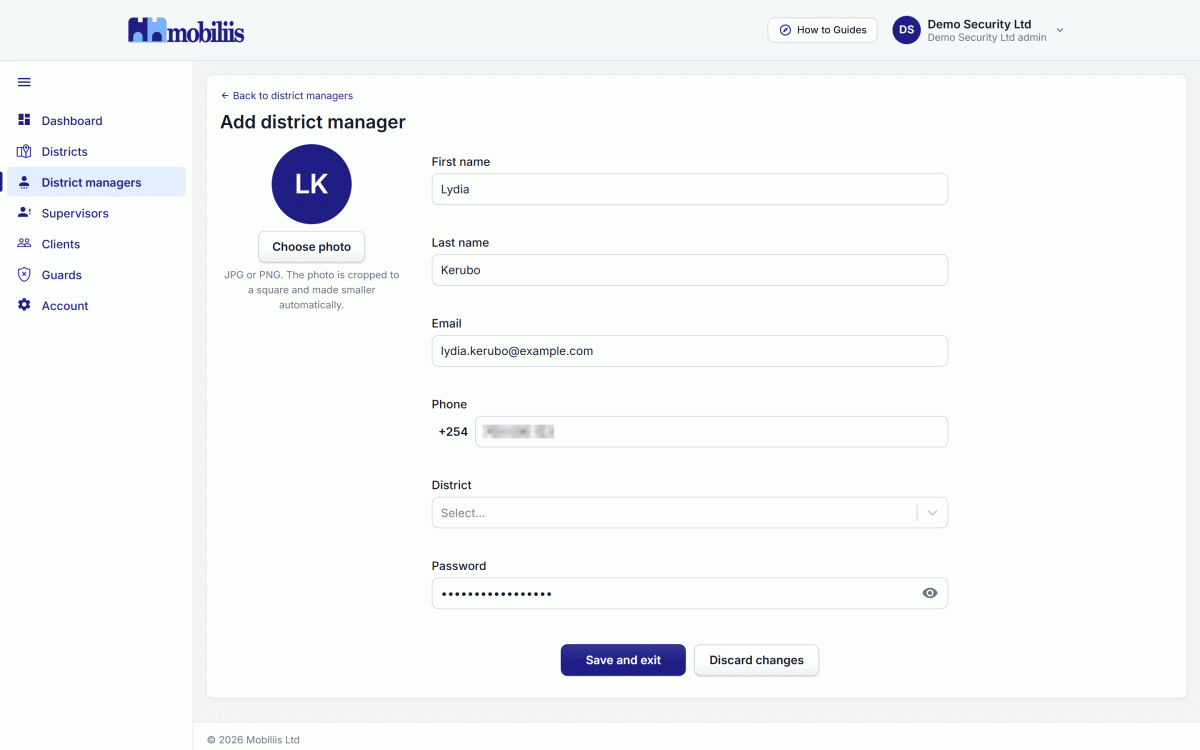
- Fill in their name, email, mobile number and district, and choose a first password. The password shows as dots; press the eye to see what you typed.
- Press Save and exit.
- Tell them their password. They get an email and must click its link before they can sign in.
An email address can only be used for one Mobiliis login.
Changing their password
Open the district manager, press Edit and type a new password. They are signed out everywhere and must sign in with the new one.
Suspending and reinstating
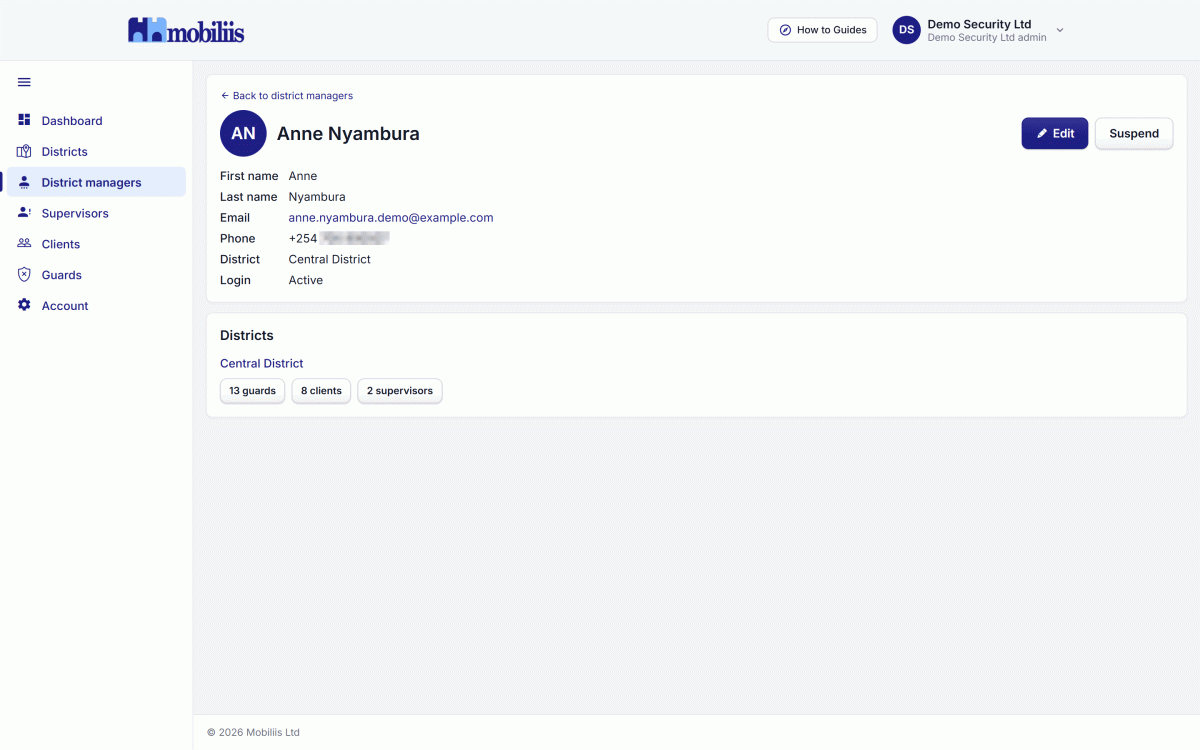
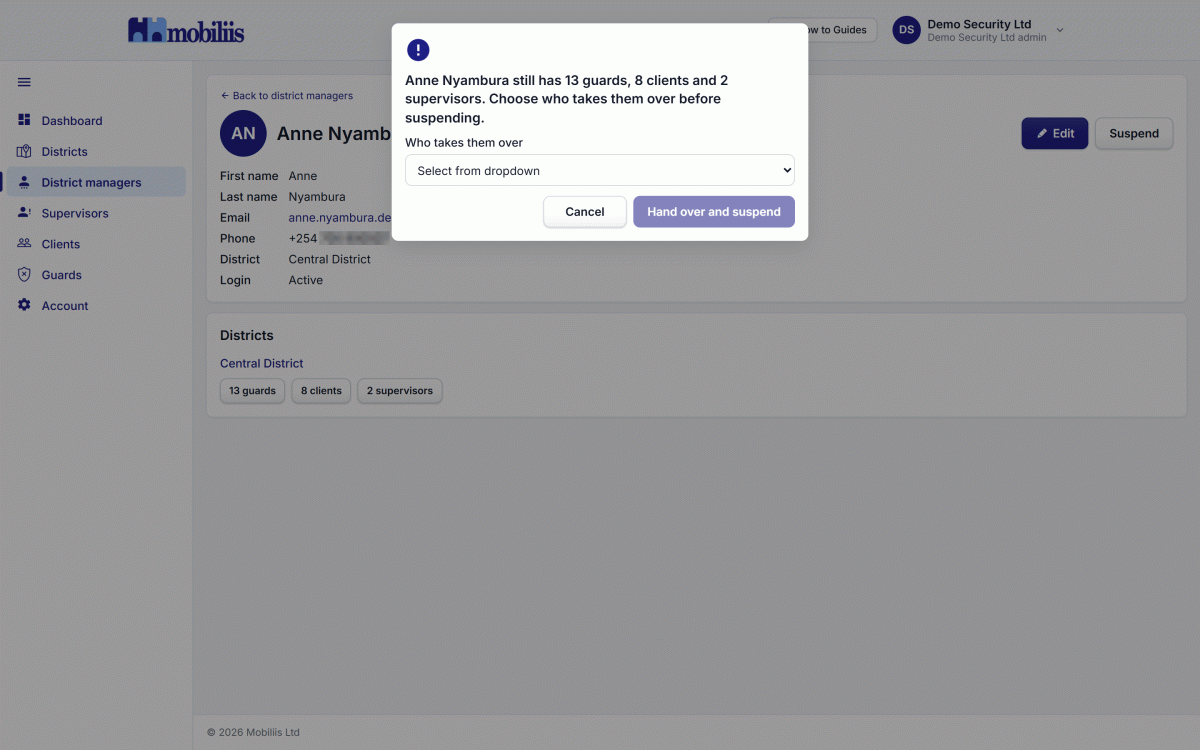
On the district manager's page, next to Edit at the top right, press Suspend. If they still have guards, clients or supervisors, Mobiliis first asks who takes them over: choose another district manager of the same district and press Hand over and suspend. If there is no other district manager in that district, you are asked to add one first. The suspended manager cannot sign in, and is signed out at once, until you reinstate them. While suspended, their page shows a Suspended badge. Press Reinstate to give them access again.
Their people stay with the new manager after you reinstate them. To give people back, use Change district manager (below).
Moving their people to another district manager
The district manager's page shows how many guards, clients and supervisors they have, for example "120 guards". Click a number to open that list, already filtered to this district manager. Tick the people you want to move (or Tick all on this page), press Change district manager, choose who takes them and press Move. You can spread people across several managers this way. Only managers of the same district are offered.
Deleting a district manager
If the district manager still has guards, clients or supervisors, pressing Delete asks who takes them over: choose another district manager of the same district and press Hand over and delete. Everyone left moves to that person, then the district manager is deleted. If there is no other district manager in that district, you are asked to add one first. Nobody is ever left without a district manager.