
Skip to content
Mobiliis
How it works The app Pricing FAQ User Manuals Get in touch Start free trial Log in
User Manuals
  • Company Admin
    1. Contents
    2. 1. What Mobiliis does and who does what
    3. 2. Starting your free trial
    4. 3. Confirming your email address
    5. 4. Signing in
    6. 5. The SMS code at sign-in
    7. 6. Confirming your phone number (first time only)
    8. 7. Finding your way around
    9. 8. Your first steps: the Getting started list
    10. 9. Your company details
    11. 10. Districts
    12. 11. District managers
    13. 12. Supervisors
    14. 13. Clients and their locations
    15. 14. Guards
    16. 15. Duties
    17. 16. Checking a duty: alerts, rest breaks and the route
    18. 17. The dashboard
    19. 18. Reports
    20. 19. Billing, invoices and paying
    21. 20. Login accounts, My details and password
    22. 21. The location email (optional)
    23. 22. Getting help: How to Guides, Common Questions and support tickets
    24. 23. Signing out
    25. 24. Private accounts: what is different
    26. 25. Mobiliis Managers
  • District Manager
    1. Contents
    2. 1. What a district manager can do
    3. 2. Getting your login
    4. 3. Signing in and the SMS code
    5. 4. Finding your way around
    6. 5. The dashboard for your district
    7. 6. Reports
    8. 7. Supervisors in your district
    9. 8. Clients and locations
    10. 9. Guards and the On duty switch
    11. 10. Duties and checking alerts
    12. 11. Support and Common Questions
    13. 12. My details and password
    14. 13. Signing out
    15. 14. If you are a Mobiliis Manager
  • Supervisor
    1. Contents
    2. 1. Getting the app and signing in
    3. 2. If you have more than one role
    4. 3. The Dashboard
    5. 4. Your guards
    6. 5. Changing a duty's name, client or location
    7. 6. Seeing what your guard sees (Guard View)
    8. 7. Your clients and notification copies
    9. 8. Seeing a client's screens (Client View)
    10. 9. Locations
    11. 10. The live map
    12. 11. Reports and sharing them
    13. 12. Notifications you receive
    14. 13. App updates, a suspended company, signing out
  • Client
    1. Contents
    2. 1. Getting the app and signing in
    3. 2. The top bar and the menu
    4. 3. Your duties
    5. 4. A duty's details
    6. 5. Your own names for duties and locations
    7. 6. Watching the guard's route
    8. 7. Contacts (the Support tab)
    9. 8. Notifications and their settings
    10. 9. Account
    11. 10. Sharing the app, updates, signing out
    12. 11. Private account owners
  • Guard
    1. Contents
    2. 1. Before you start
    3. 2. Signing in
    4. 3. The settings page (very important)
    5. 4. Your duty page
    6. 5. When your duty is running
    7. 6. Answering alerts (the most important section)
    8. 7. Rest breaks
    9. 8. Your location while on duty
    10. 9. No signal
    11. 10. Your badge
    12. 11. Info
    13. 12. No duty, Off duty, suspended
    14. 13. Updates and signing out
  • Personal Account
    1. Contents
    2. 1. What a Personal account is
    3. 2. Signing up
    4. 3. Confirming your email and your phone
    5. 4. Your free trial, and billing after it
    6. 5. Finding your way around
    7. 6. My locations
    8. 7. Guards
    9. 8. Duties
    10. 9. Following your guards: dashboard, alerts and reports
    11. 10. The Mobiliis app for you
    12. 11. Your Account page
    13. 12. Moving to a Company account
    14. 13. Signing out
  • Reseller
    1. Contents
    2. 1. What a reseller does
    3. 2. Your login
    4. 3. Signing in and the SMS code
    5. 4. Finding your way around
    6. 5. Your companies
    7. 6. Working inside a company
    8. 7. Your commission
    9. 8. Your details
    10. 9. Support and Common Questions
    11. 10. Signing out

User Manuals › Mobiliis Supervisor Guide

8. Seeing a client's screens (Client View)

Tap a client and open Client View. A yellow "Client View" bar shows you are looking at the client's screens: their Duties, Support and Other tabs. Tap the back arrow, or the phone's Back button, to return to your own screens.
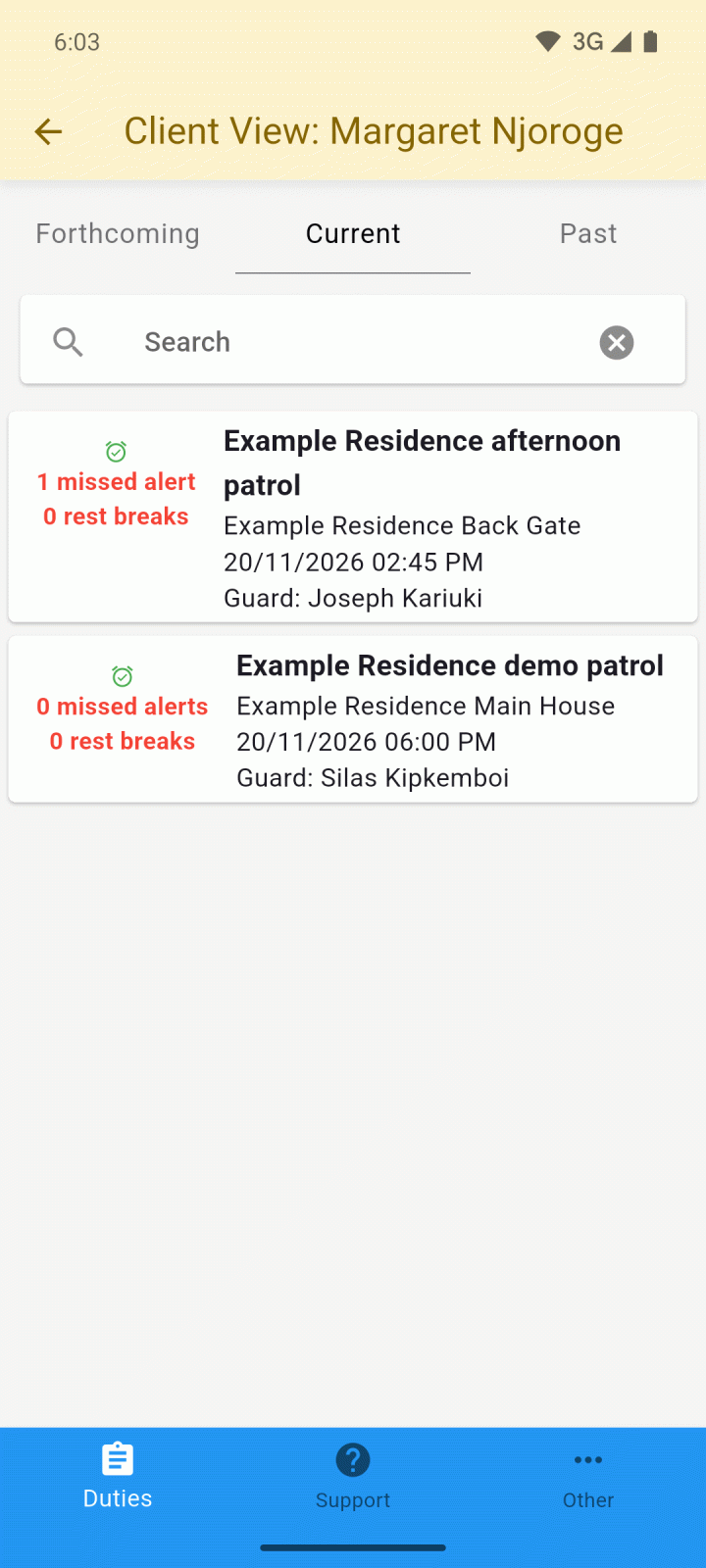
Client View on the Current tab
‹ Previous: 7. Your clients and notification copies Next: 9. Locations ›
Mobiliis
FAQ User Manuals Terms and Conditions Privacy policy Log in

© Mobiliis. Mobile eyes for the mobile age.

Mobiliis Ltd, registered in Scotland SC600097