User Manuals Mobiliis Personal Account Guide
8. Duties
A duty is a shift a guard works at one of your locations.
Adding a duty
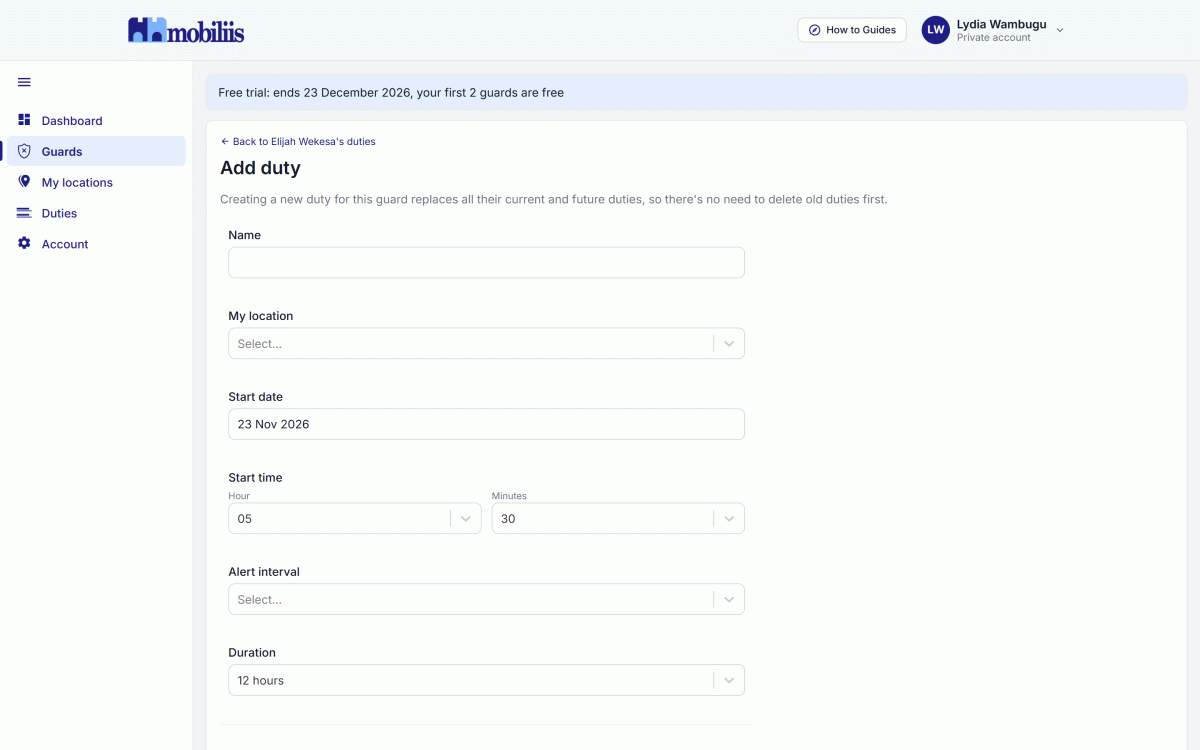
- Open the guard, go to their duties, and press Add duty.
- Fill in:
- a Name;
- My location: select the location from the dropdown: where the guard works;
- the Start date and Start time. A duty can only start on the hour or at 15, 30 or 45 minutes past;
- the Duration;
- the Alert interval: how often the guard's app asks them to answer. Mobiliis sets the intervals you can choose from. 45-minute intervals only work with a duration of 3, 6, 9 or 12 hours;
- Rest break, if you want it, and the Rest duration (minutes): you are told in the Mobiliis app when the guard has not moved for longer than your chosen rest break time.
- Press Save and exit.
If you have no locations yet, the form says "Add your locations first (My locations)".
If the start time has already passed, Mobiliis asks: "This duty's start time has already passed. Alerts before now will be recorded as missed. Save anyway?"
A duty repeats every day
Every duty repeats every day at the same local time, so you don't have to keep on creating duties. Mobiliis keeps the next 5 days ready. There is no separate one-off duty.
A new duty replaces the old ones
The form says: "Creating a new duty for this guard replaces all their current and future duties, so there's no need to delete old duties first." When you save, Mobiliis asks you to confirm: "This guard already has current or future duties. Saving this new duty replaces them." Press Save to go ahead.
Changing a duty
You can change a duty only before it starts. Once it is running, you see "This duty is running, so it can no longer be edited."
Ending a duty
There is no "end duty" button. To stop a duty, you can:
- delete it (this deletes it for good, with its alerts, rest breaks and tracking), but the record of already completed duties remains;
- switch the guard Off duty (section 7);
- or save a new duty for the guard, which replaces it.
The guard's duties page has two tabs: Current and future, and Past.