User Manuals Mobiliis Company Admin Guide
25. Mobiliis Managers
A Mobiliis Manager is a district manager you trust to help you run your Mobiliis account. A Mobiliis Manager can do everything the company admin can across your whole Mobiliis account, except billing, admin logins and changing the company information.
A Private account cannot have Mobiliis Managers.
Making a district manager a Mobiliis Manager
- Add the person as a district manager first (section 11).
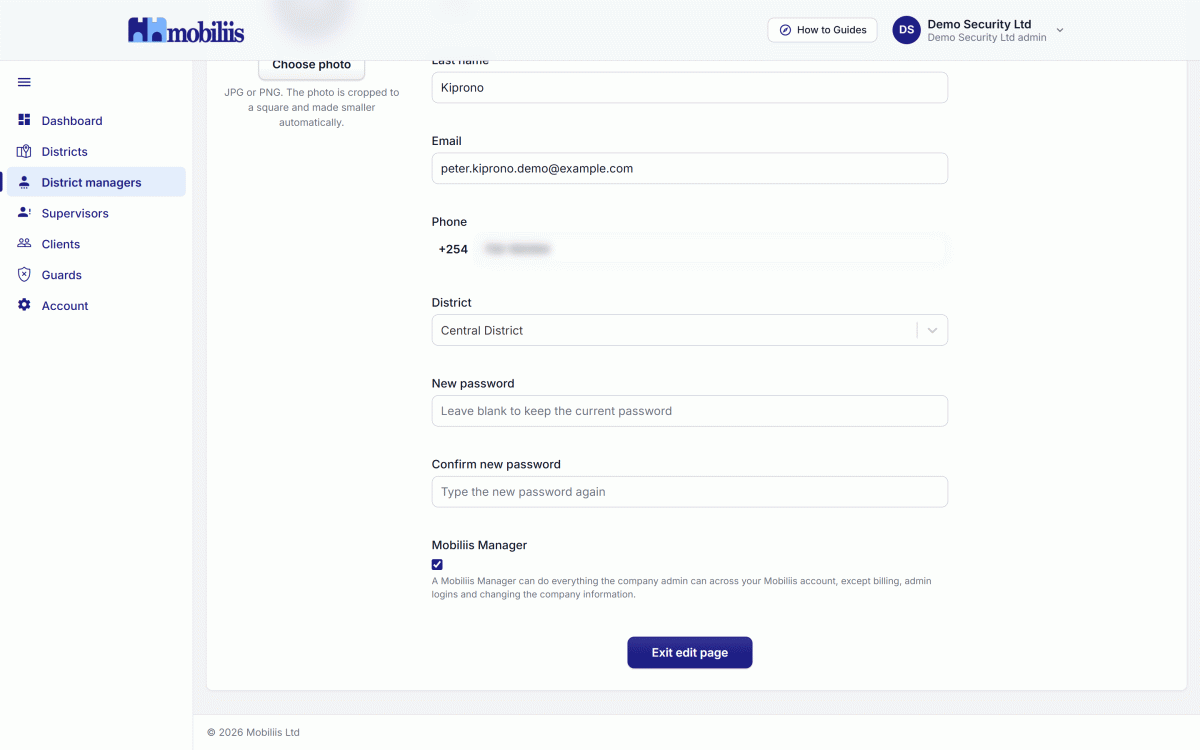
- Open their page and press Edit.
- Tick Mobiliis Manager.
- Press Save and exit.
Only you, as company admin, or Mobiliis can set this tick. Your reseller cannot. If the tick cannot be saved, you see "The Mobiliis Manager tick could not be saved."
To stop: untick Mobiliis Manager and save. They become an ordinary district manager the next time they click anything. Everything they made stays in your Mobiliis account.
What a Mobiliis Manager can and cannot do
A Mobiliis Manager works across your whole Mobiliis account, not only in one district. Their side menu has Dashboard, Districts, District managers, Supervisors, Clients, Guards, Account and Support. They see all the support tickets of your Mobiliis account.
They cannot:
- see or change the company's billing;
- see or change the company's admin logins;
- change the company information (they can see it on the Account page);
- make someone a Mobiliis Manager;
- change, suspend or delete a Mobiliis Manager, themselves included. The Edit, Delete and Suspend buttons are not shown to them for those people;
- add any login other than a district manager.
If they try, Mobiliis tells them to ask you, for example "Mobiliis Managers cannot see or change the company's billing. Please ask your company admin."
How you recognise a Mobiliis Manager
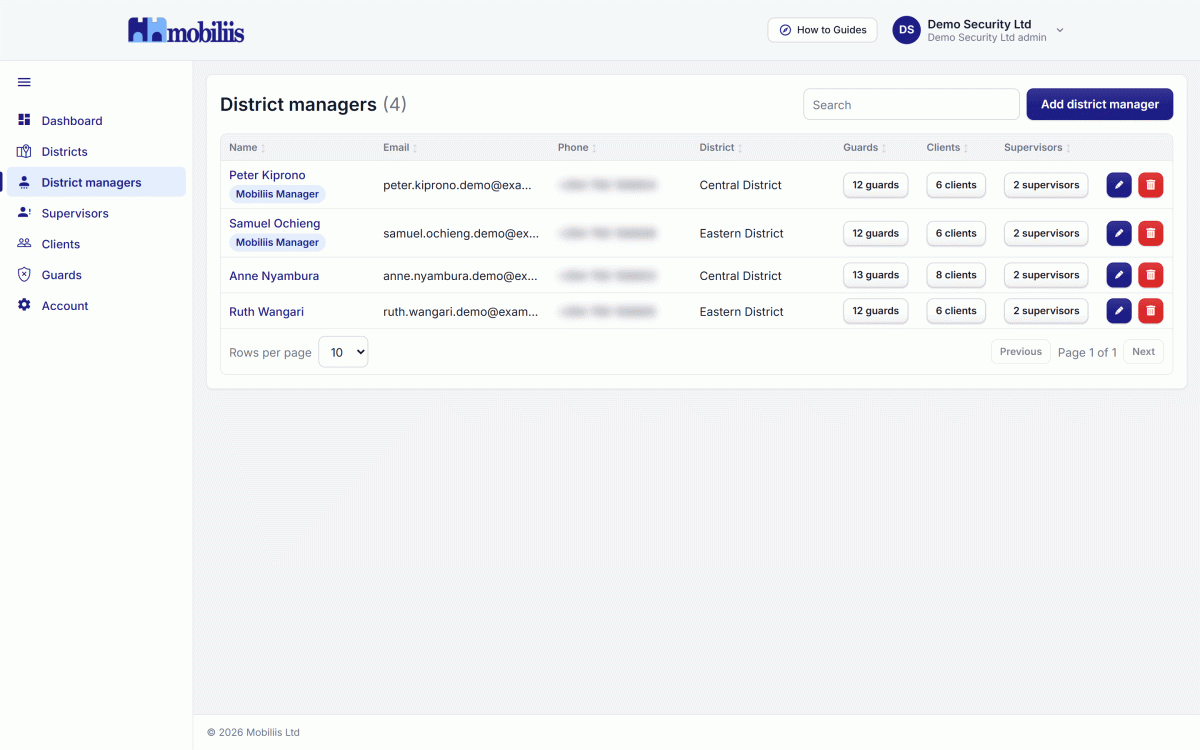
- District managers list: Mobiliis Managers are always at the top, with a small blue "Mobiliis Manager" label under their name. Each group follows the column sort you choose.
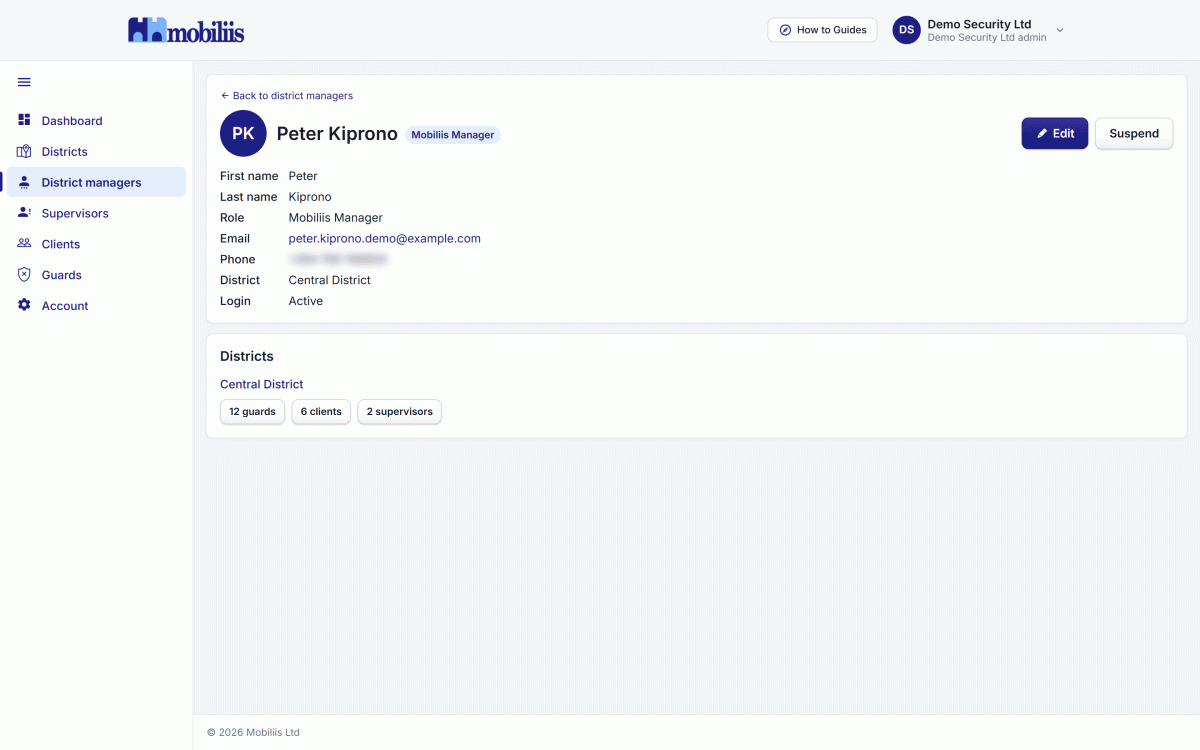
- Their page: the label beside their name, and the line "Role: Mobiliis Manager".
- Login accounts tab: the same label under their name.
- Who made a change (On/Off duty history, alert result history): for example "Acme Security Mobiliis Manager Otieno".
- Support tickets: "Mobiliis Manager
", or "Former Mobiliis Manager " once they are no longer one. - Their daily report email: the subject names them as "Mobiliis Manager:
". On the Report tab they are listed as " (Mobiliis Manager)".
The dashboard's "Mobiliis Managers" tab
While your Mobiliis account has at least one Mobiliis Manager, the dashboard has a fifth tab, Mobiliis Managers, after Report. You, your Mobiliis Managers and Mobiliis support can see it.
A red number on the tab shows how many messages you have not read yet. It is checked when the dashboard opens and every minute.
The tab has three parts, side by side on a computer and one under the other on a phone:
- Managers: your Mobiliis Managers. Click a name to open their page. A suspended one shows "(suspended)".
- Messages: the shared conversation (see below).
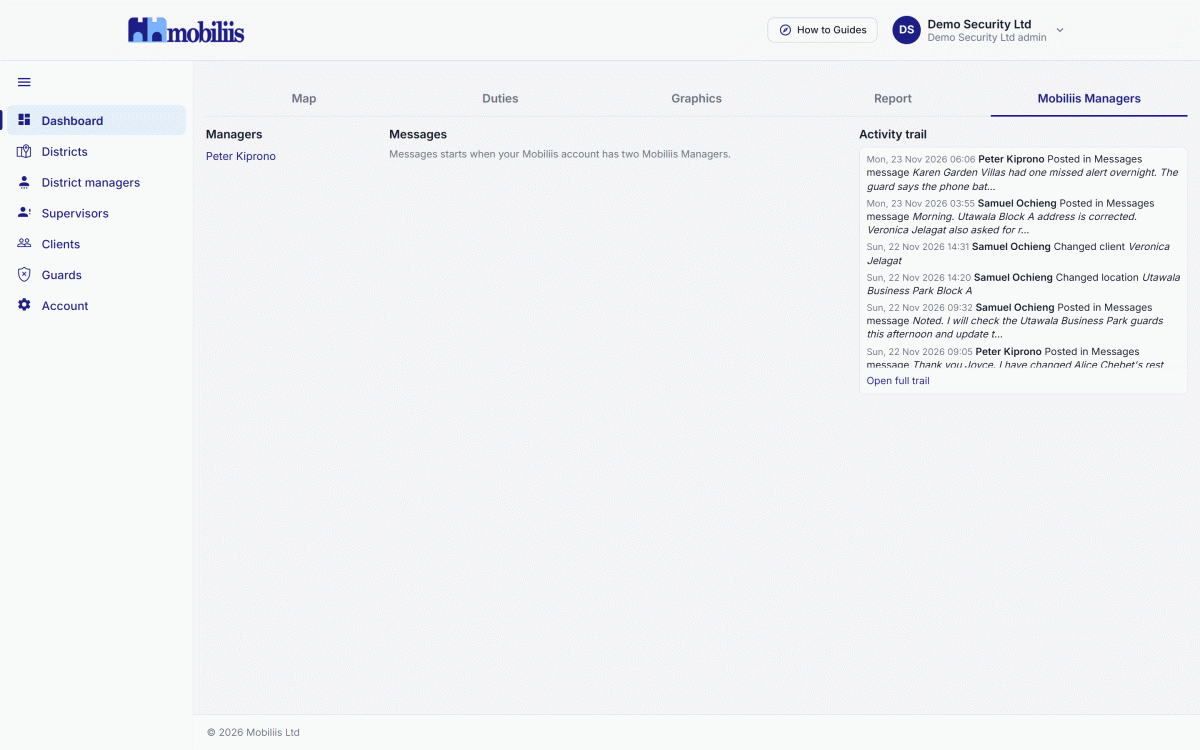
- Activity trail: the latest 20 changes made by your Mobiliis Managers, one short line each: when, who, what, and which record. Press Open full trail for all of them. If there are none yet, it says "No changes yet."
Messages and the Activity trail are only on this tab. They are not in the side menu.

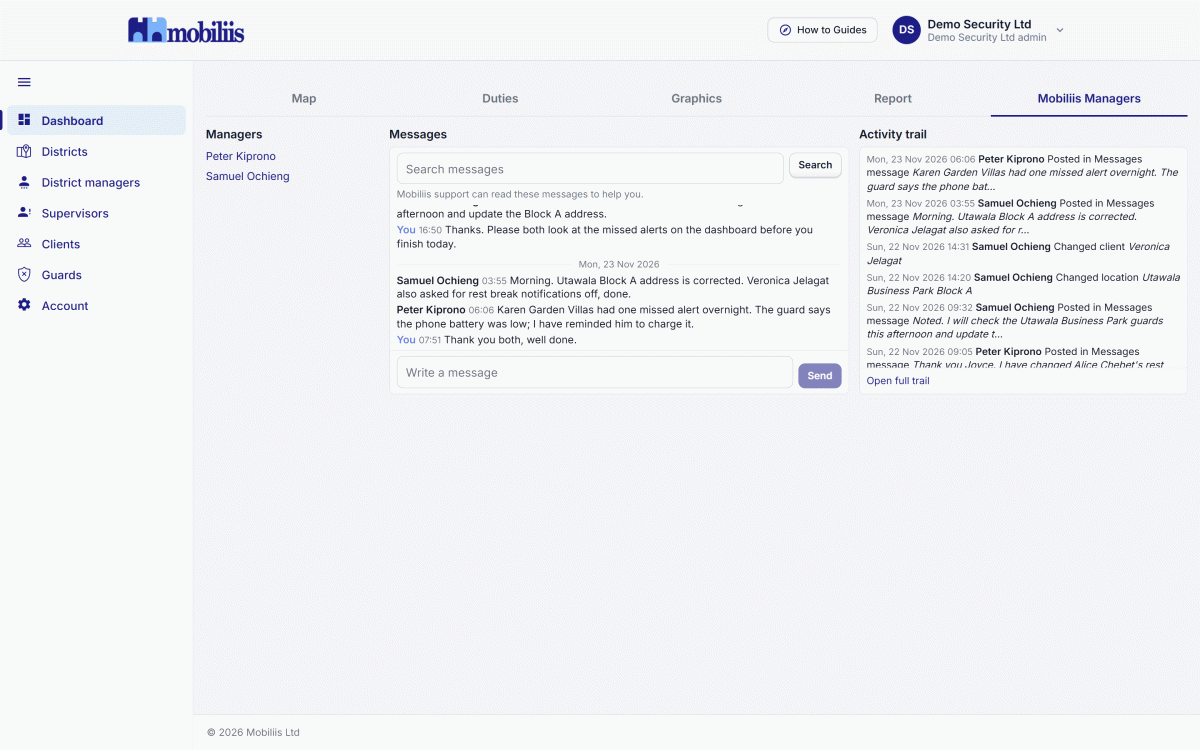
Messages
Messages is one shared conversation for your Mobiliis account, between you, your Mobiliis Managers and Mobiliis support. Resellers and ordinary district managers never see it.
It only starts once your Mobiliis account has two or more Mobiliis Managers who are not suspended. Until then the tab says "Messages starts when your Mobiliis account has two Mobiliis Managers." If the number drops below two later, Messages is hidden, but the messages are kept and come back when there are two again.
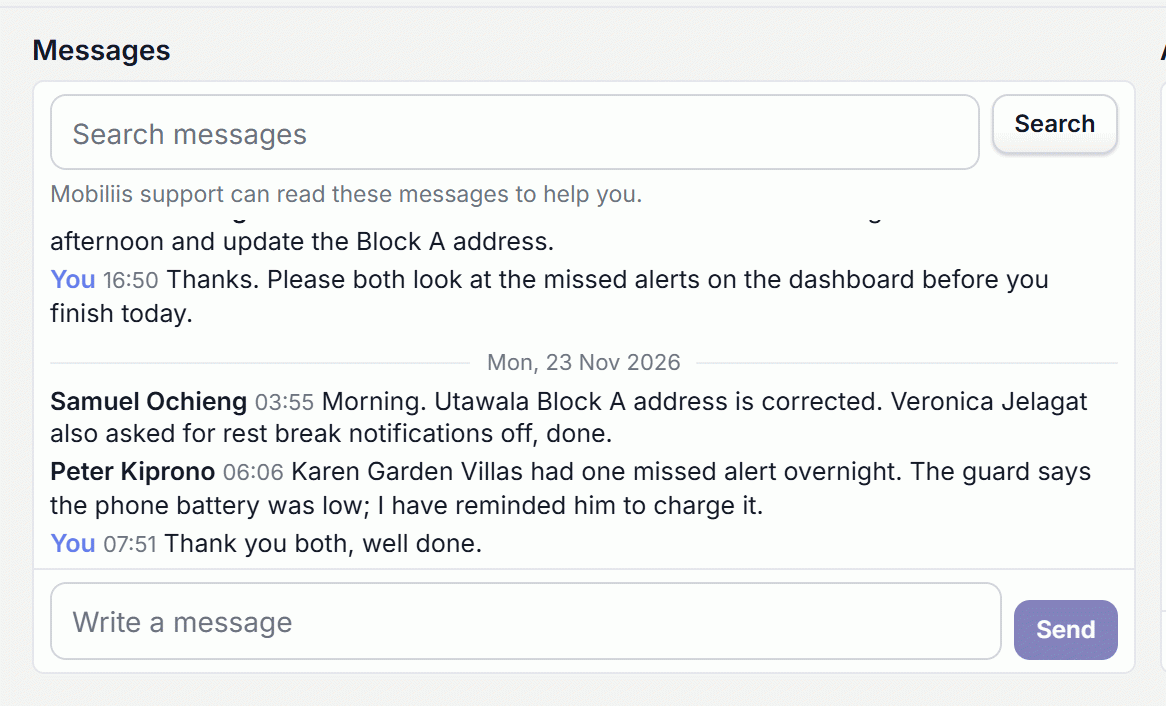
At the top of the box: "Mobiliis support can read these messages to help you."
- Writing: type in Write a message and press Send, or press Enter. Shift+Enter starts a new line. Text only, up to 2,000 characters.
- Reading: each message shows the name in bold ("You" for your own), the time and the text. A small date line separates the days. Hover over a name to see the role: "Company admin", "Mobiliis Manager" or "Mobiliis support". New messages come in every 30 seconds.
- Older messages: the box opens at the newest 50. Scroll up to load older ones, back to "The first message." All messages are kept.
- Search: type in Search messages and press Search. It finds messages by their text or by who wrote them. Press Back to all messages to return.
- The red count clears once you have seen the newest messages. Searching or scrolling back does not clear it.
- Mobiliis sends no emails or phone notifications for messages, so check the tab.
- If you send too many messages too fast, you see "You are sending messages too quickly. Please wait a minute and try again."
The full Activity trail
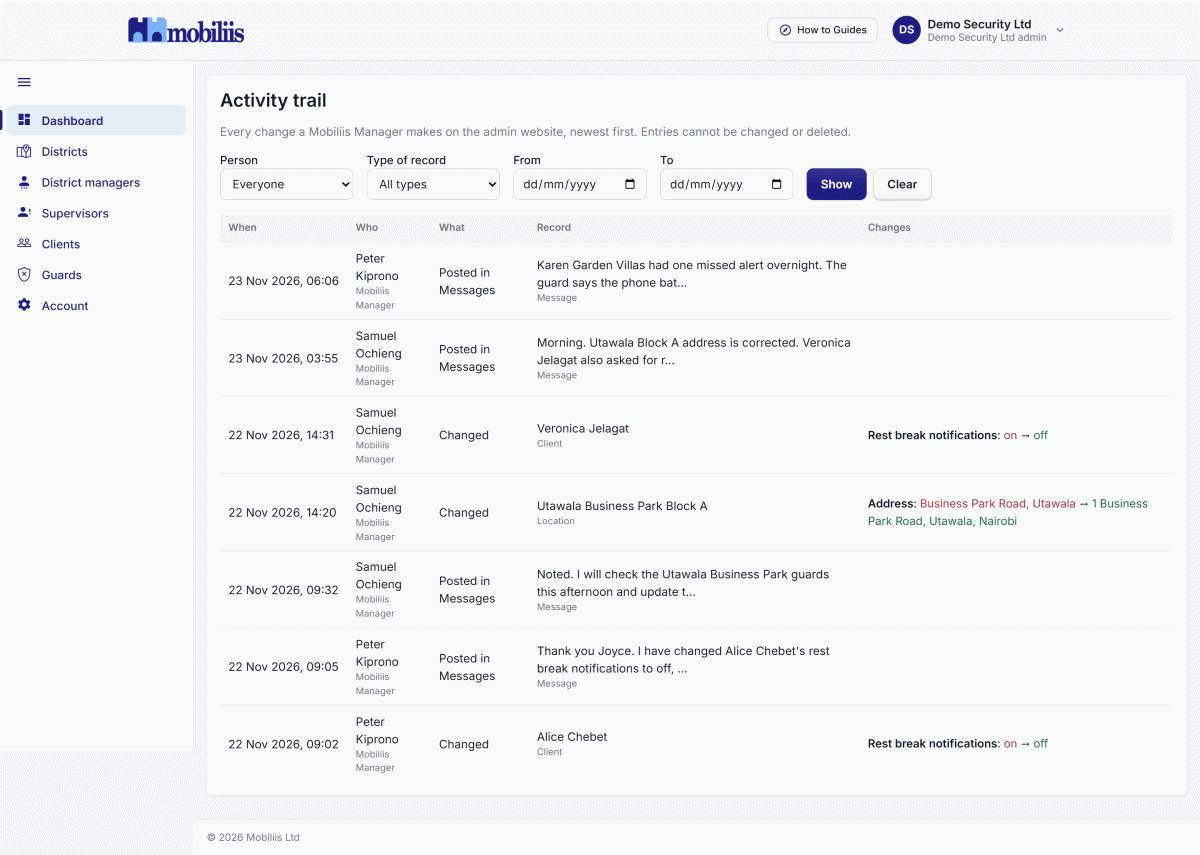
Press Open full trail on the tab. The page Activity trail lists every change a Mobiliis Manager makes on the admin website, newest first. Entries cannot be changed or deleted.
- Filters: Person ("Everyone" or a name), Type of record ("All types" or a type), From and To (dates in your own time zone). Press Show, or Clear to start again.
- Columns: When, Who, What, Record and Changes. A change shows the field before and after, as "
: → ", with "(empty)" where there was nothing. - 50 entries a page, with Previous and Next.
Good to know:
- Only changes made by Mobiliis Managers are recorded. Changes you make, or ordinary district managers make, are not, and neither is simply looking at a page.
- Passwords and codes are never kept in the trail.
- Entries stay after a Mobiliis Manager is unticked or deleted. They go only if the Mobiliis account is deleted by Mobiliis.