User Manuals Mobiliis Personal Account Guide
9. Following your guards: dashboard, alerts and reports
The dashboard
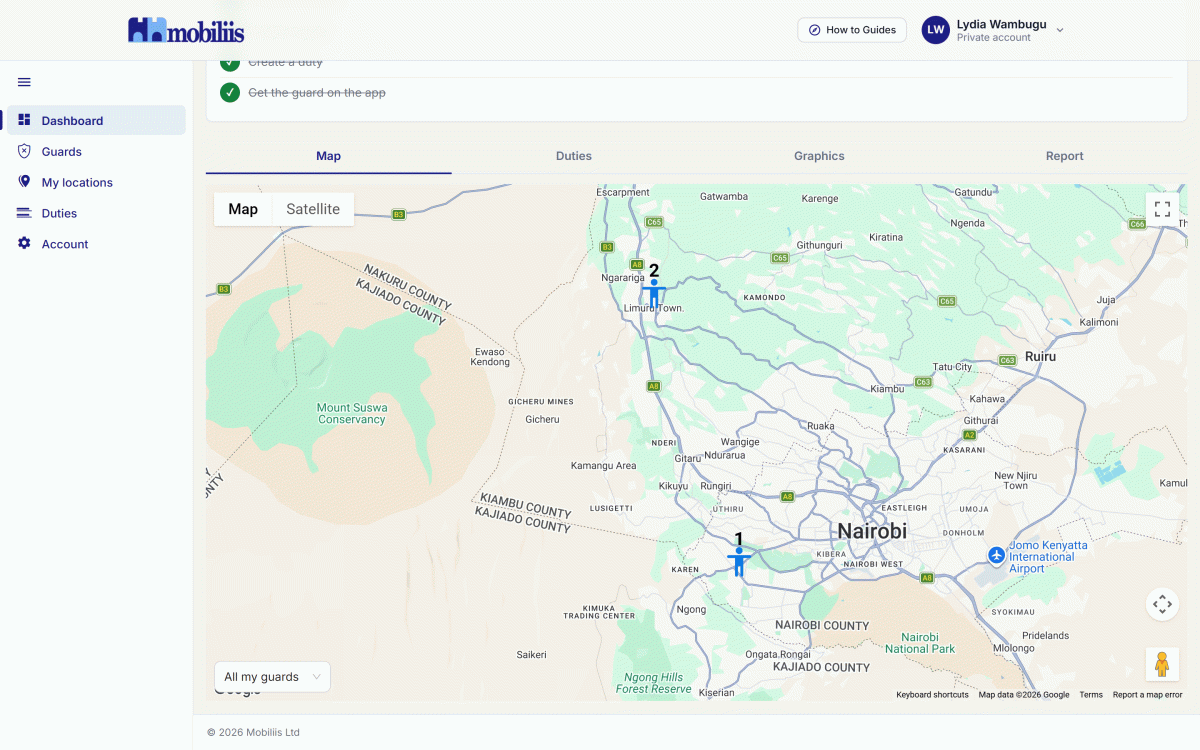
The dashboard has four tabs: Map, Duties, Graphics and Report. The selector has one choice, "All my guards".
- Map: your guards on duty now.
- Duties: Current Duties and Past Duties. Click a duty to open it.
- Graphics: charts of your guards' Hit record and missed alerts.
- Report: see below.
Checking alerts and changing a result
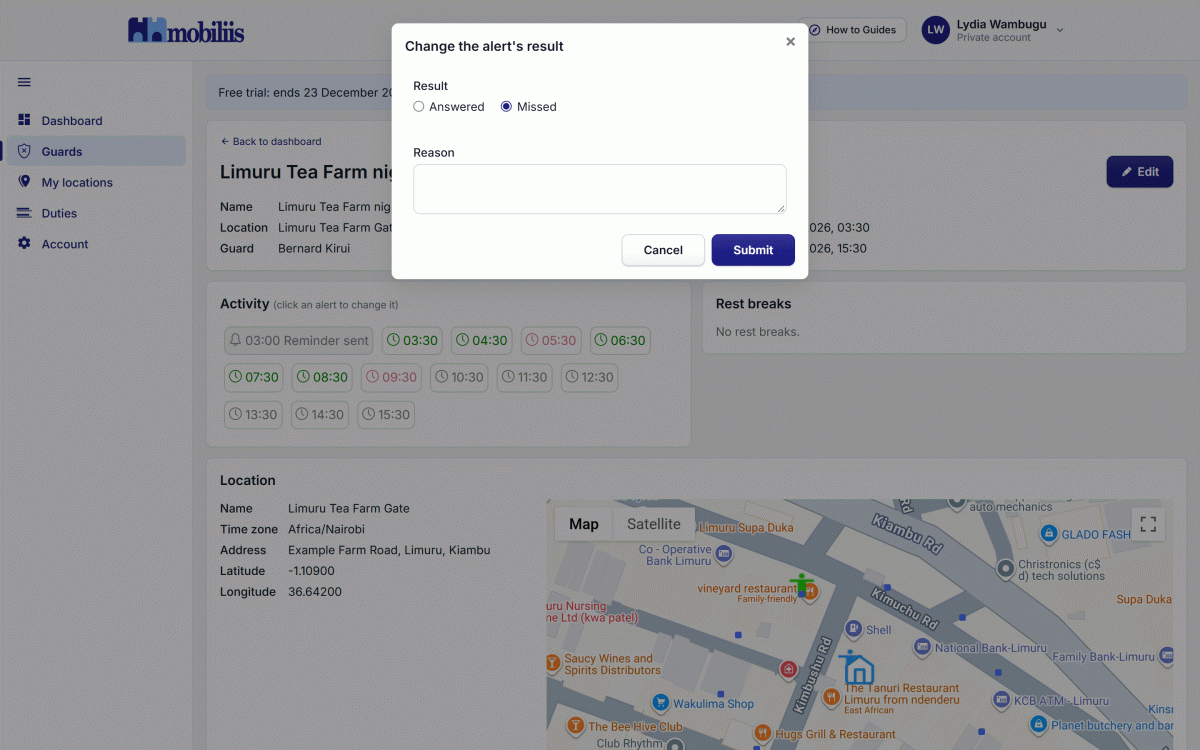
Open a duty to see its alerts. Green is answered and red is missed. Grey ones cannot be changed.
To change a result:
- Click a green or red alert. The pop-up "Change the alert's result" opens.
- Choose the Result (Answered or Missed) and type the Reason.
- Press Submit.
You must give a reason ("Please give the reason for the change."). Every change is kept in the alert's Change history, with the reason, the time and the result.
You may also see "Not on location", and "Off duty" for an alert that was due while the guard was off duty: it counts neither as missed nor as answered.
The daily report email
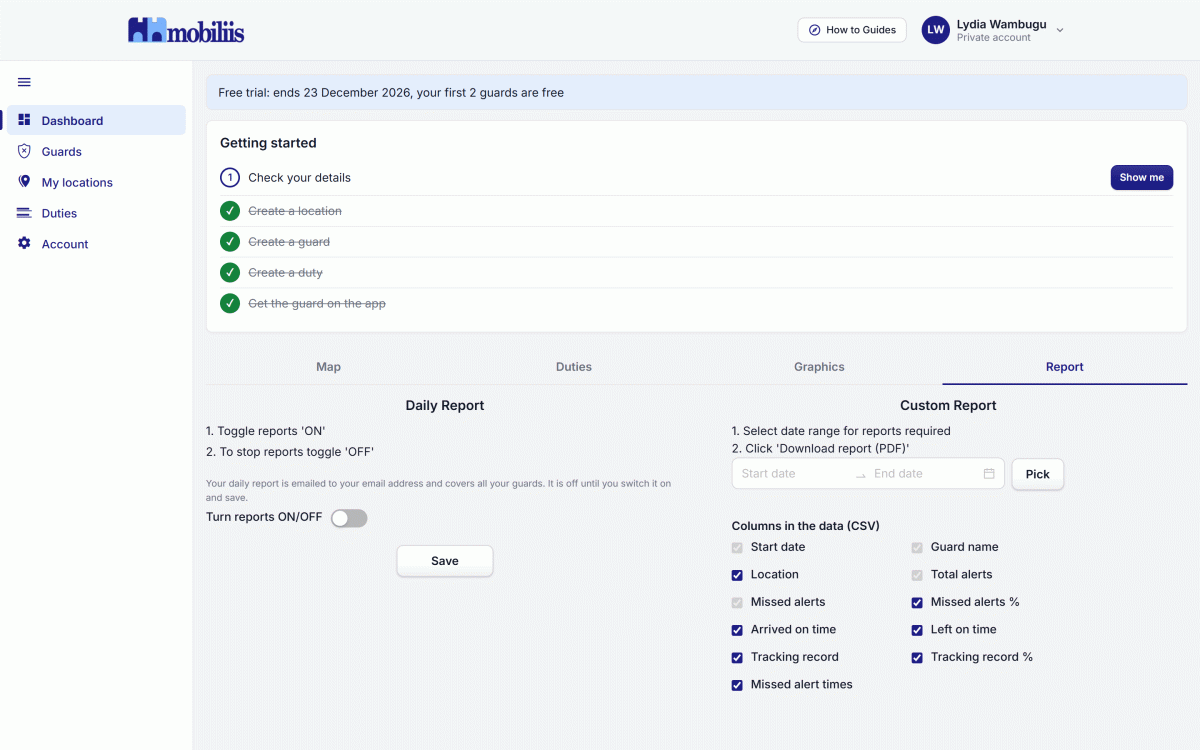
- Open the Report tab.
- Under Daily Report, switch Turn reports ON/OFF on.
- Press Save.
The daily report is emailed to your account's email address in the morning. It covers the duties that ended in the last 24 hours and holds a summary, a PDF and a CSV file. It is off until you switch it on and save. It is not sent while your account is suspended, or when there is nothing to report. To stop it, switch it off and press Save.
There is no dropdown on this tab: your daily report and your own report always cover all your guards.
Your own report
Under Custom Report, pick the dates (Pick, then Done), then press Download report (PDF) or Download data (CSV). For the CSV you can choose the columns under "Columns in the data (CSV)". If there is nothing for those dates, you see "No report data found for the selected criteria".