User Manuals Mobiliis Personal Account Guide
6. My locations
A location is a place your guards work, for example your home or your business premises.
Adding a location
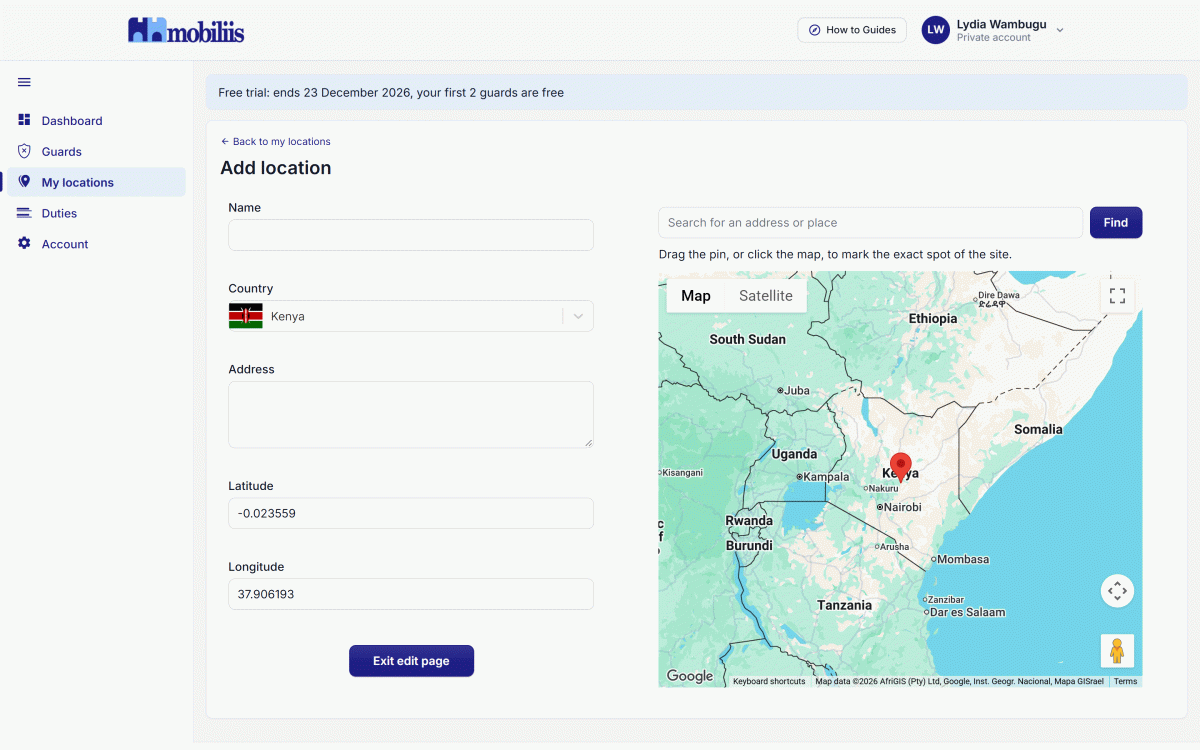
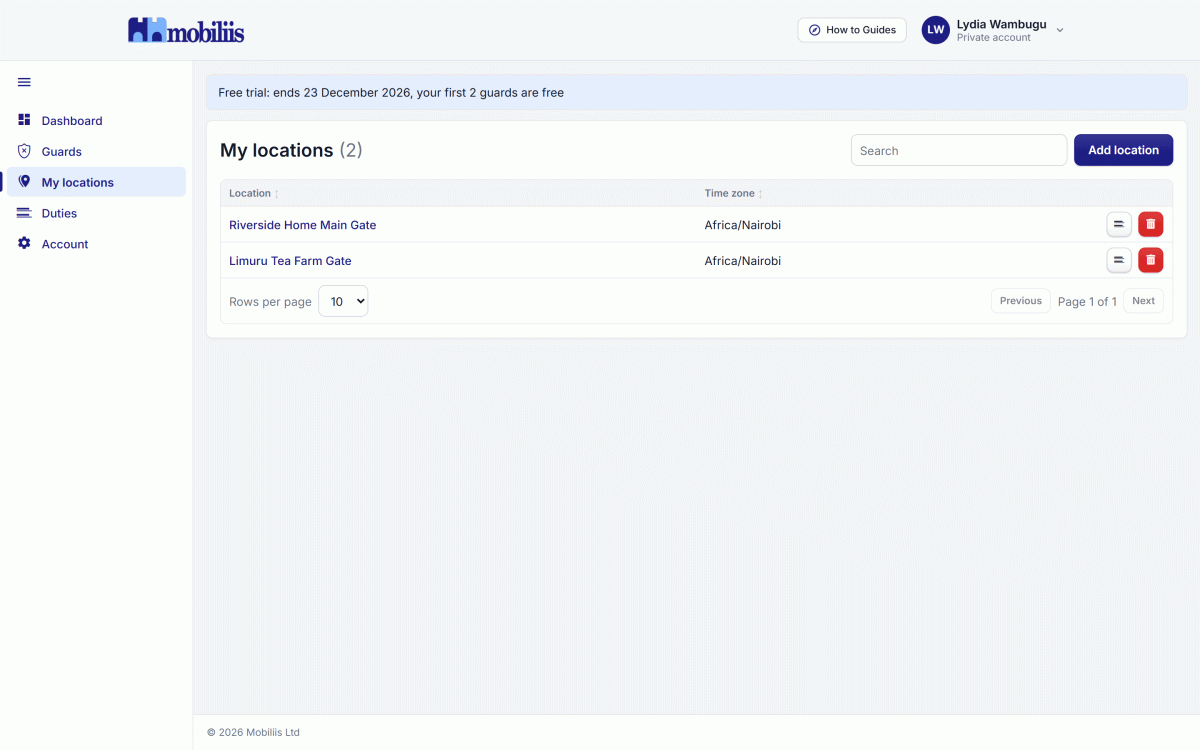
- In the side menu, click My locations, then Add location.
- Type a Name and an Address.
- On the map, use Search for an address or place, then drag the pin, or click the map, to mark the exact spot of the site. You can also type the Latitude and Longitude; the pin moves to them.
- Press Save and exit.
Good to know:
- A new location is not saved until you have moved the pin: "Please move the pin to the exact spot of the site." Mobiliis checks that the guard is at this spot when the duty starts.
- The Country follows the pin ("Country set to
from the map pin."), and so does the time zone. You only choose a time zone if the country has several and the pin does not settle it. - Each location name must be different from your other locations. If it is not, you see "That location name is already registered."
- If the search cannot find the place: "That address or place was not found. Try adding the town or country, or drag the pin."
Changing or deleting a location
- Change: click the location's name in the list.
- Duties at this location: press it on the location's row.
- Delete: press Delete location. A location with current or future duties cannot be deleted: delete or move those duties first. Its finished duties are kept for your reports.