User Manuals Mobiliis Company Admin Guide
14. Guards
Guards sign in to the Mobiliis app with the phone number you enter. During a duty the app gives them alerts to answer.
Adding a guard
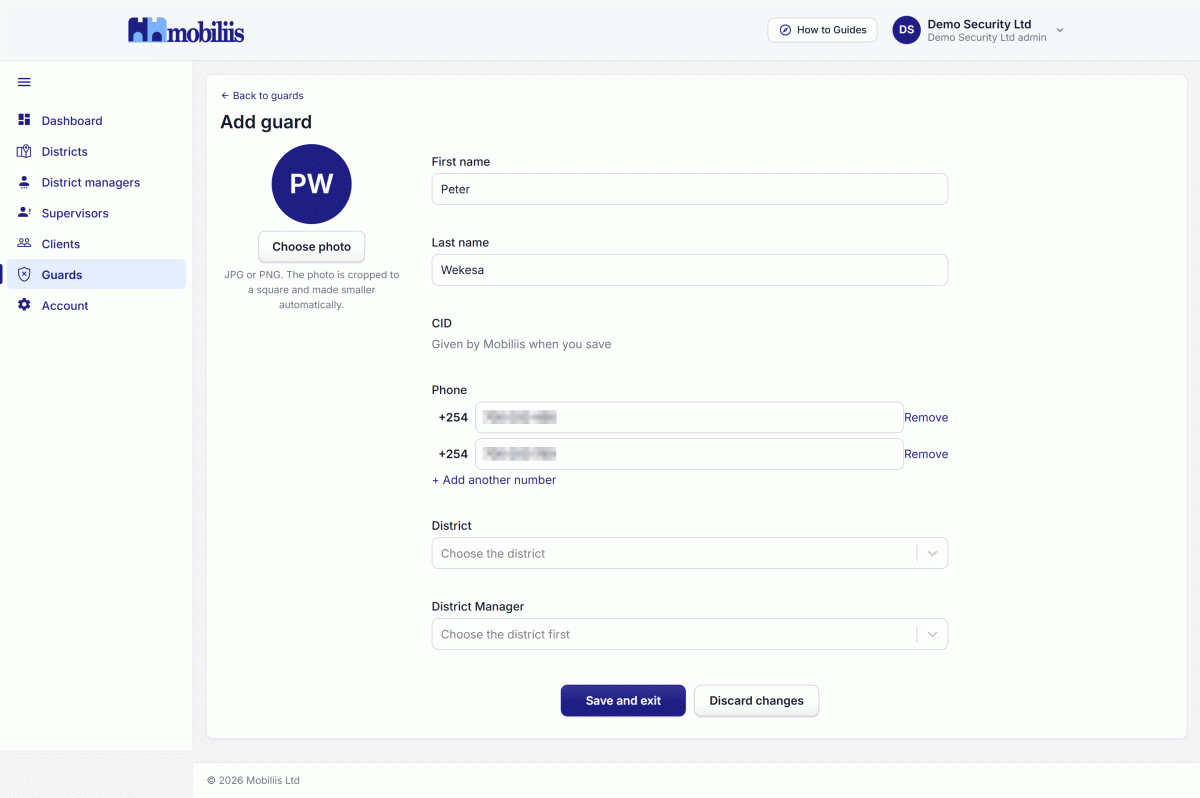
- In the side menu, click Guards, then Add guard.
- Fill in their name, phone number, district and district manager (and a photo if you like). Mobiliis gives them their CID.
- Press Save and exit.
If there is no district or district manager yet, the form tells you to add one first.
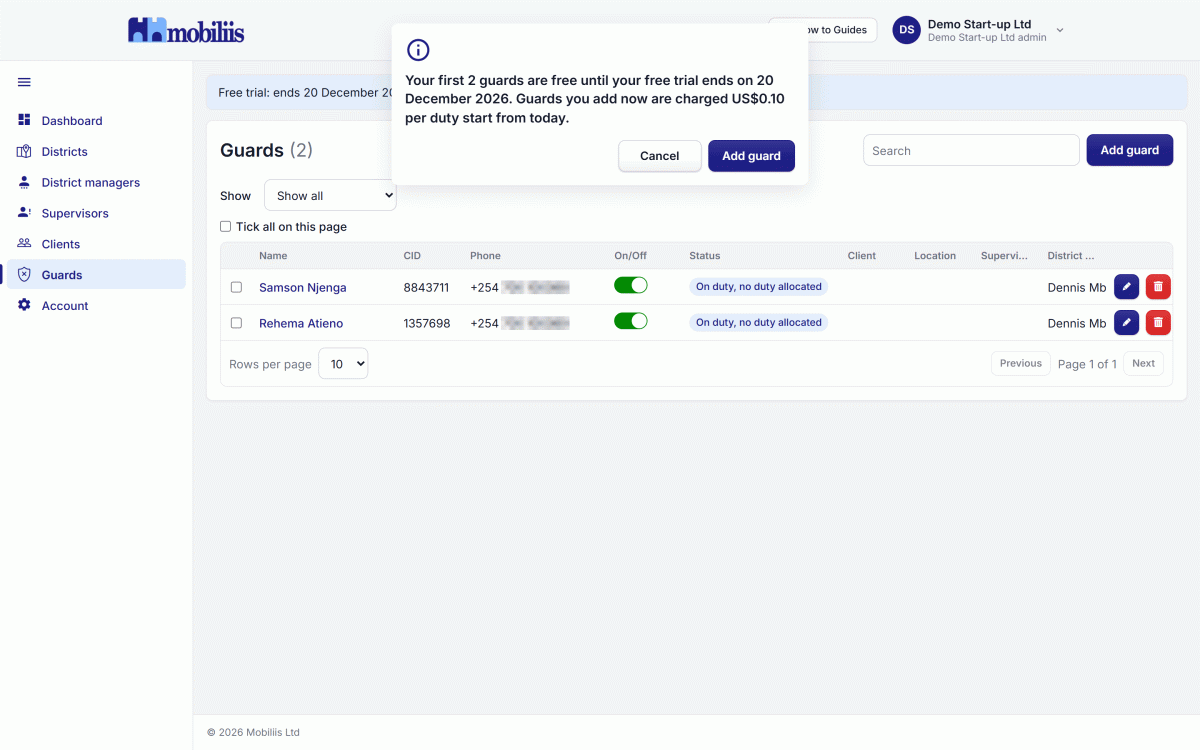
During your free trial, once you have 2 guards, pressing Add guard first tells you that the new guard is charged per duty start from today.
Several phone numbers, or one shared phone
- One guard, several numbers: on the guard's form, press + Add another number. The guard can sign in with any of them and keeps the same CID. Press Remove next to a number to take it off; if they were signed in with it, they are signed out.
- Several guards sharing one phone: give each guard their own record, with the shared phone's number on each. When someone signs in on that phone, the app asks for their CID, so each guard's duties, alerts and tracking stay under their own name.
- As you type a number, the form shows numbers already used in your company, which helps you spot a shared phone or a mistake.
On duty and Off duty
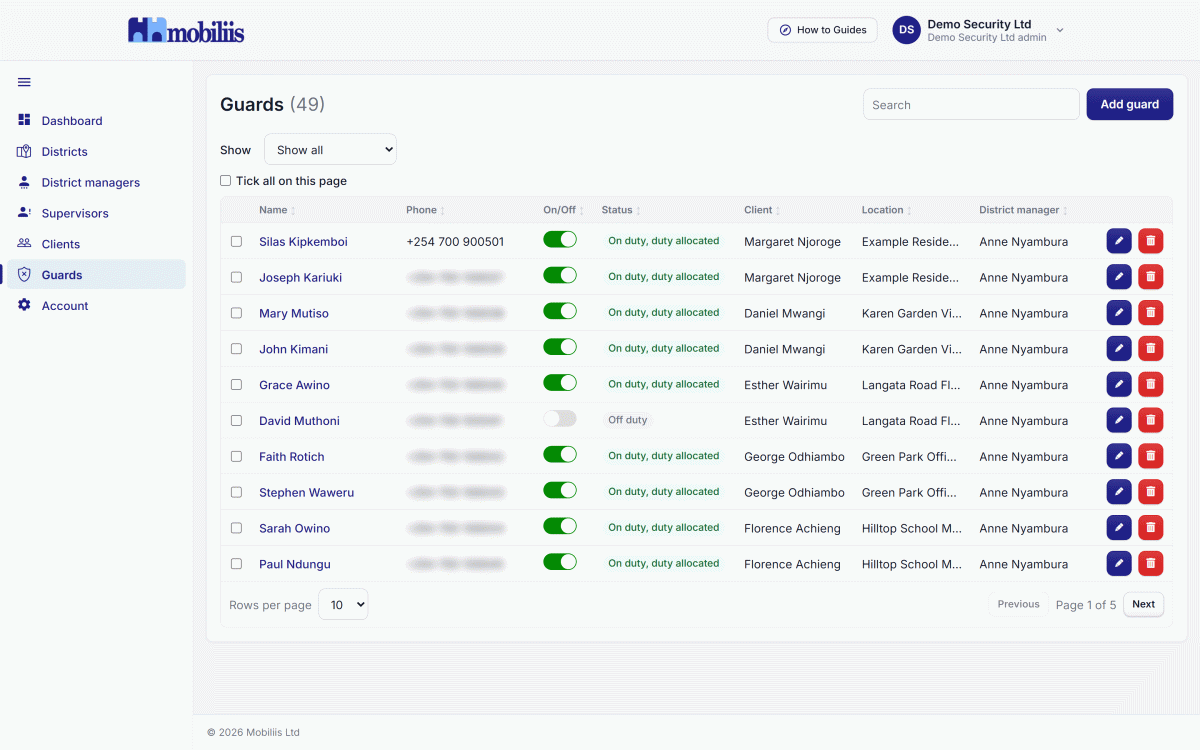
Each guard has an On duty switch. Switch it off to take a guard off duty without deleting them: their alerts stop counting and they do not appear in reports. A guard counts as Off duty when they are switched off or have no duty running. On the Guards list you can sort or filter by On duty / Off duty, to find a guard who is free.
The guard's page
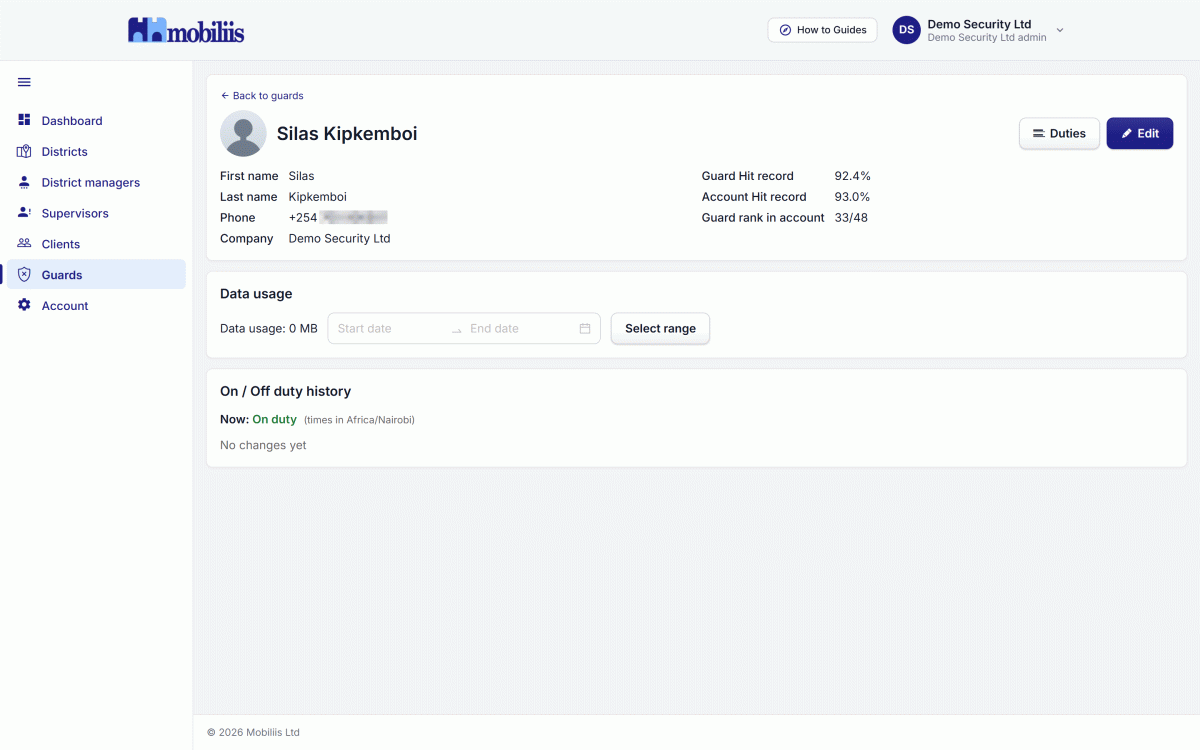
Shows their details, Hit record, the account's Hit record and their rank, their data use, and their On/Off duty history.
How the Hit record is worked out: the alerts the guard answered within 60 seconds, as a percentage of all the alerts of their duties. A duty start where the guard was not at the duty location counts as a missed alert. The reminder 30 minutes before the duty, rest breaks, and alerts while the guard was switched off duty are not counted.
Getting the guard onto the app
Tell the guard to install Mobiliis from Google Play  and sign in with the phone number you entered. They get an SMS code. The Getting started step "Get the guard on the app" is ticked once they have signed in.
Deleting a guard
Deletes the guard and all their duties.