
User Manuals Mobiliis Reseller Guide
7. Your commission
How it is worked out
- You earn commission when one of your companies pays a Mobiliis invoice. It is worked out once for each paid invoice, on the invoice total. Stripe's card fee is not taken off.
- Your rate is shown on the Commission page: "Your commission:
% of each paid invoice". - Void and waived invoices earn nothing.
- Private accounts earn you commission in the same way as companies.
- Everything is in US dollars (USD).
- If Mobiliis moves a company to another reseller, the commission you have already earned on it stays with you. From then on, the new reseller earns on that company's paid invoices.
The Commission page
In the side menu, click Commission. At the top, choose the period: a month, "
The page shows:
- "Owed to you now (not invoiced yet)" and your rate;
- "Commission earned", "Not invoiced yet", "Invoiced, awaiting payment" and "Paid to you" for the chosen period;
- a line for all time: what you have earned and what has been paid to you;
- Your companies: for each company, what Mobiliis invoiced it, what it has paid and what it still owes, with a Total line;
- Commission by company and Commission by month: earned, not invoiced yet, awaiting payment and paid;
- Your invoices to Mobiliis (see below).
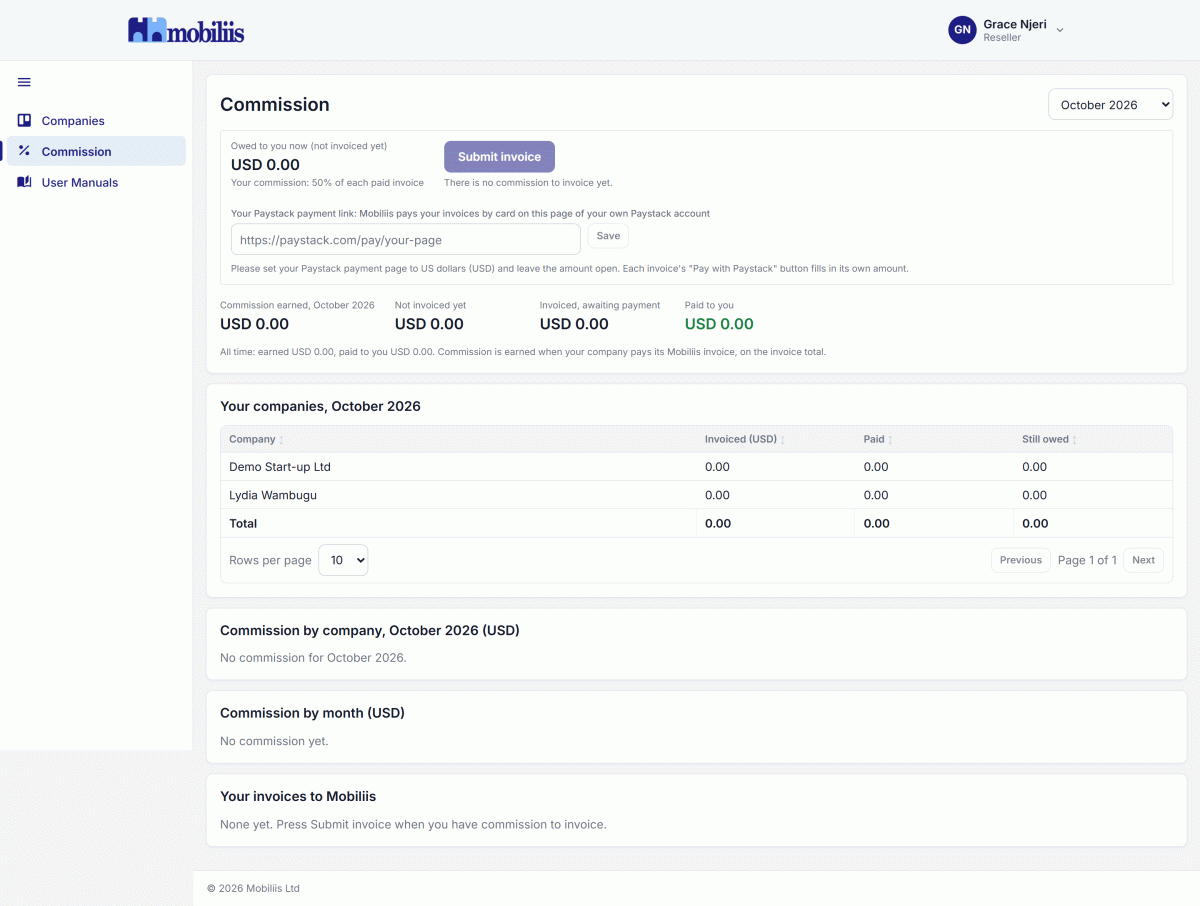
Your Paystack payment link
Mobiliis pays your commission invoices by card on a payment page of your own Paystack account. Before you can send your first invoice:
- In Your Paystack payment link, type the address of your Paystack payment page, for example https://paystack.com/pay/your-page.
- Press Save. You see "Your Paystack payment link is saved."
Please set your Paystack payment page to US dollars (USD) and leave the amount open. Each invoice's Pay with Paystack button fills in its own amount.
The link must start with https:// and be a Paystack link. If not, you see for example "This is not a Paystack link. It should look like https://paystack.com/pay/your-page".

Sending Mobiliis an invoice
- On the Commission page, press Submit invoice.
- Mobiliis asks: "Send Mobiliis an invoice for USD x of commission? An invoice cannot be changed once it is sent." Confirm.
- You see "Invoice
for USD x has been sent to Mobiliis. You will get an email when it is paid."
Good to know:
- One invoice covers all the commission not invoiced yet, with one line for each company and month.
- Your invoices are numbered RES-
-0001, RES- -0002 and so on, and are addressed to Mobiliis. - The due date is 14 days after the invoice date.
- Submit invoice is greyed out when "There is no commission to invoice yet." or until you have saved your Paystack link ("Please enter and save your Paystack payment link first.").
Your invoices to Mobiliis
The table Your invoices to Mobiliis lists each invoice with its date, due date, amount and status: "Awaiting payment" or "Paid
Before your first one it says "None yet. Press Submit invoice when you have commission to invoice."
The PDF is headed "COMMISSION INVOICE". It shows your business as "From", Mobiliis as "Bill to", and one line for each company and month ("Commission:
Being paid
Mobiliis receives your invoice by email, with the PDF, and pays it on your Paystack payment page. Once the payment is recorded:
- the invoice shows "Paid
" on your Commission page (with " (from FreeAgent)" when it was recorded through Mobiliis's bookkeeping); - you get the email "Your Mobiliis commission invoice
has been paid (USD x)".
You do not need to do anything else. If you have a question about a payment, just reply to that email.