User Manuals Mobiliis Reseller Guide
5. Your companies
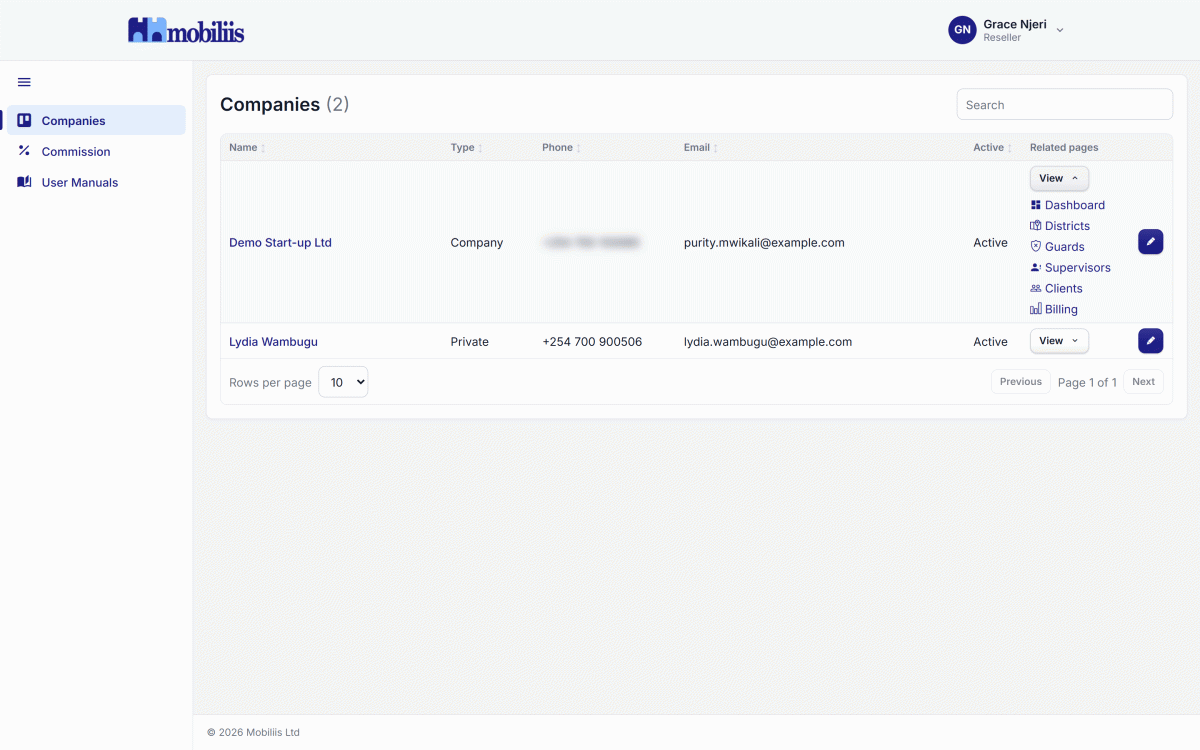
In the side menu, click Companies. The list shows only your own companies, with their Name, Type ("Company" or "Private"), Phone, Email, Active and Related pages. Use Search to find a company by any of these.
Suspended companies
The Active column shows whether the company can use Mobiliis. Only Mobiliis can suspend or reinstate a company: contact admin@mobiliis.com. A suspended company's name cannot be opened.
Related pages
In the Related pages column, press View to go straight to the company's Dashboard, Districts, Guards, Supervisors, Clients or Billing.
Billing opens the company's Account page on its Billing tab, where you see "Billing is shown to the company admin and to Mobiliis only." (section 6).
Editing and deleting a company
- Edit company changes its details.
- Delete company: only Mobiliis can delete a company ("Only the super admin can delete a company"). Ask Mobiliis at admin@mobiliis.com.
Adding a company
Only Mobiliis can add a company. Encourage the company to sign up on www.mobiliis.com, then write to admin@mobiliis.com so that Mobiliis links it to you.