
User Manuals Mobiliis Personal Account Guide
3. Confirming your email and your phone
Your email address
- Open the email "Welcome to Mobiliis: please confirm your email address".
- Press Confirm my email address.
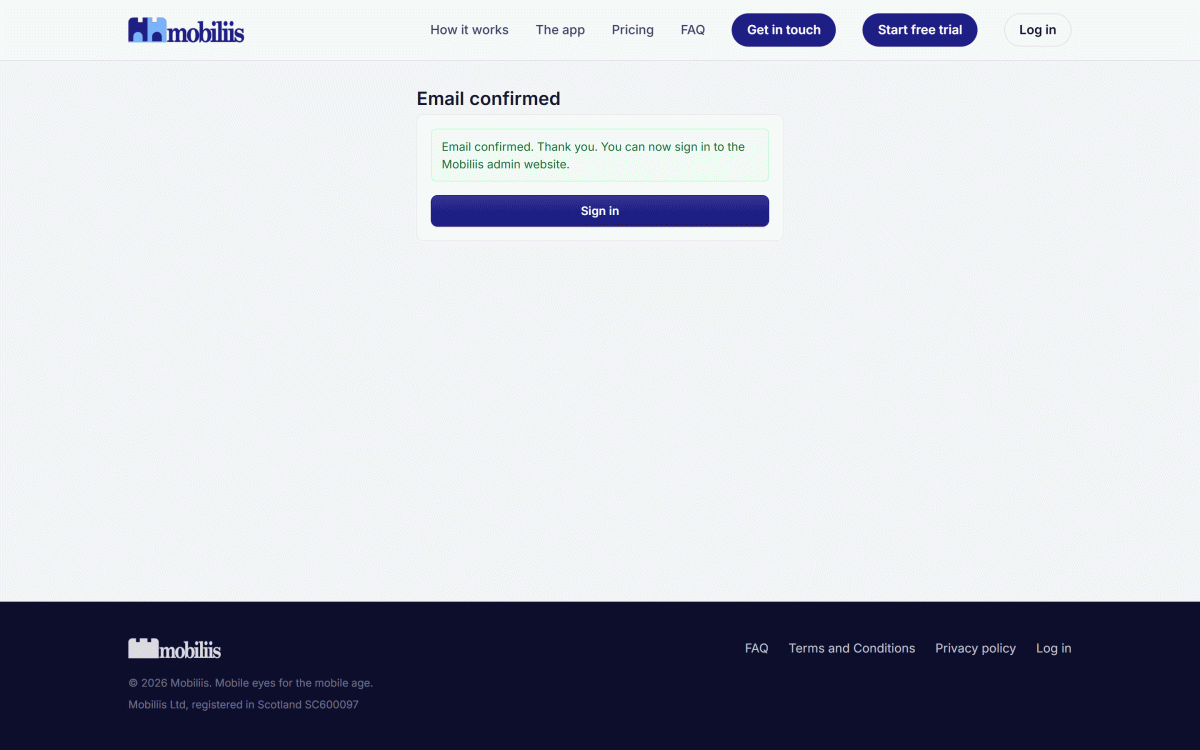
- The page "Email confirmed" opens. You can now sign in to the admin website.
You can sign in to the admin website once your email address is confirmed.
If the page says "This link is no longer valid…", the link has been used already or a newer email was sent. If your address is already confirmed, just sign in. If not, press Send the email again.
Once your address is confirmed you also get the email "Welcome to Mobiliis!". It gives the date your free trial ends and your CID for the Mobiliis app (section 10).
Signing in
On the admin website, type your email and password and press Log in.
Your phone number (first time)
The first time you sign in, Mobiliis asks you to confirm your phone number: "Confirm your phone number".
- Press Send code. Mobiliis sends a code by SMS to the phone number on your account.
- Type it in the box Code from the SMS and press Confirm.
The text can take up to 5 minutes to arrive. Please wait for it before pressing Resend code. You cannot change the phone number you have entered on this page. If it is wrong, contact admin@mobiliis.com.
The SMS code at sign-in
When you sign in on a new browser, Mobiliis also asks you to "Enter the code from the SMS". Type the code and press Confirm. Once you have entered a code, that browser is remembered for 30 days.
New Terms and Conditions
When Mobiliis publishes new Terms and Conditions, you see a page "Terms and Conditions" when you sign in. Press Read the Terms and Conditions, tick I agree to the Terms and Conditions and carry on. Nothing else works until you have accepted them.